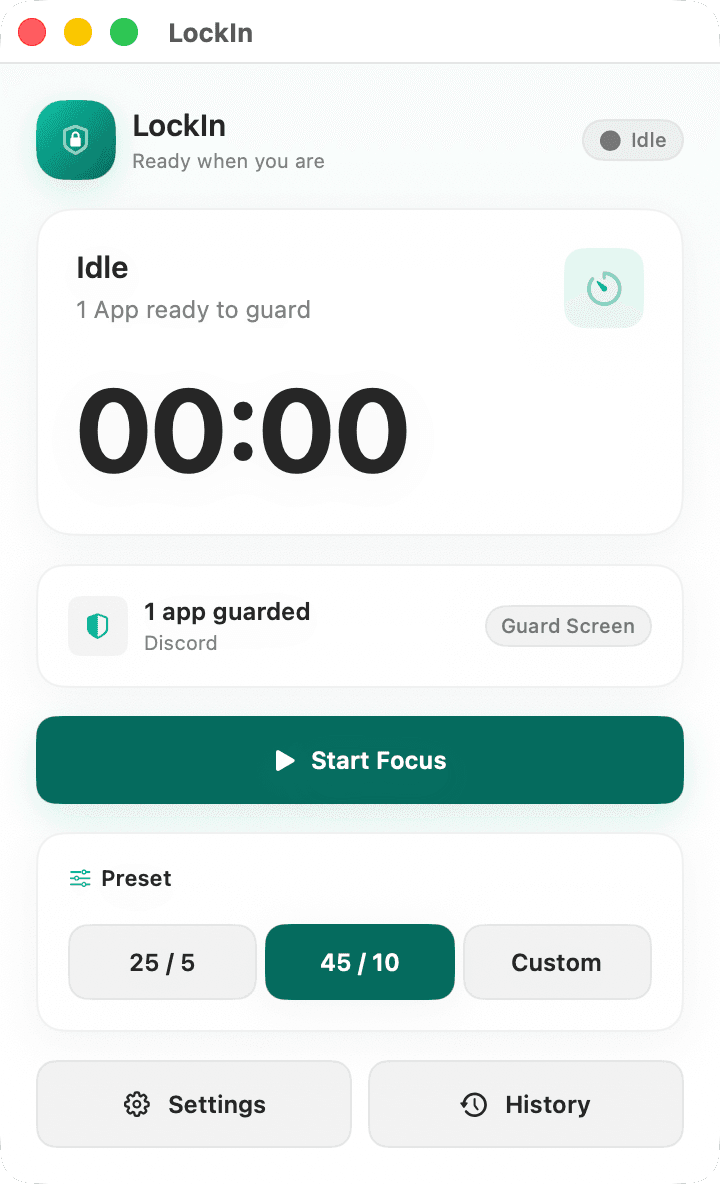
Guard Screen
Hides the selected app and shows Guard Screen without terminating the process.
LockIn
You want to be there with them. You just don’t want to talk for forty minutes. Blockers make you leave. LockIn lets you stay — camera on, studying beside your friends, without falling into Discord for “just one second.”
Launch email and occasional build notes. No weekly funnel.
Why it exists
I started building LockIn for nights when my friends and I study together on Discord: everyone in the call, cameras on, trying to get work done. I wanted to stay in the room without turning one quick reply into forty minutes of yapping.
Most blockers remove Discord. LockIn removes the decision to resist it. Discord can stay alive. You just can’t fall into it without first seeing the choice you are making.
Guard Screen
LockIn hides Discord and puts Guard Screen in front of the habit. Go back to work, open a five-minute exception, or end the session. Nothing is disguised as willpower and none of the exits are hidden.
The difference
Guard Screen uses macOS app hiding instead of terminating the process. The rest of LockIn is there to decide when that behavior applies and to make the boundary visible.
Hides the selected app and shows Guard Screen without terminating the process.
Start or stop the block and check the time without opening another surface to manage.
LockIn stops watching apps during the break and starts again with the next focus block.
Sessions are stored locally and export as CSV or JSON.
Current boundaries
No promises of impossible discipline and no features that do not exist yet.
Use 25/5, 45/10, or set the focus and break lengths yourself.
All three behaviors exist and are selectable in Settings. Guard Screen is the default.
LockIn does not prevent ⌘Q. An interrupted focus block is recorded as abandoned, and relaunch starts fresh.
Local history can be exported from the History menu in both formats.
How it works
LockIn rejects Finder, Dock, System Settings, Terminal, WindowServer, and itself both when they are added and when they open.
Choose 25/5, 45/10, or custom timing from the native app or menu bar.
When you enter Discord during focus, LockIn hides it and shows Guard Screen. During the break, it does nothing.
Stay present in the call without turning it into a forty-minute conversation.
Share the room with other people while protecting the block you said you would finish.
For calls, uploads, and background work that should not die because you opened a window.
Your focus history does not need to become an account or a remote profile.
Local-first, literally
No account, cloud sync, remote analytics, or network dependency in the current build.
Config, temporary state, and history live in ~/Library/Application Support/LockIn/.FAQ
What stops you, what does not, and exactly where the escape hatches are.
Nothing. v0.1 does not install a privileged helper or prevent ⌘Q. Quitting LockIn stops guarding immediately, records an active focus block as abandoned, and relaunch starts fresh. Guard Screen is a speed bump, not a cage.
It opens that app for exactly five minutes. You can use it again; v0.1 has no allowance cap or penalty. If the app is still frontmost when time expires, LockIn hides it and shows Guard Screen again.
Not yet. Current history records session timestamps, duration, final status, selected-app count, and behavior—not each Guard Screen hit or exception.
Not in Guard Screen or Hide Only: both behaviors hide the app. Quit App is a separate, explicit third behavior that requests termination.
Guard Screen uses macOS hide, not terminate, so the process stays alive. The full Discord call, camera, microphone, and screen-sharing matrix still needs manual validation before release.
No. Finder, Dock, System Settings, Terminal, WindowServer, and LockIn are excluded by bundle ID and name. Validation happens when an app is added and again when it opens.
Only during the focus phase and only for selected apps. Guarding stops during breaks and when the session ends.
No. The current build stores everything on your Mac, has no network client, and works offline.
Early access
Join the early-access list. I’ll email when LockIn is ready to test with a real Discord study call.