A different rule for every app
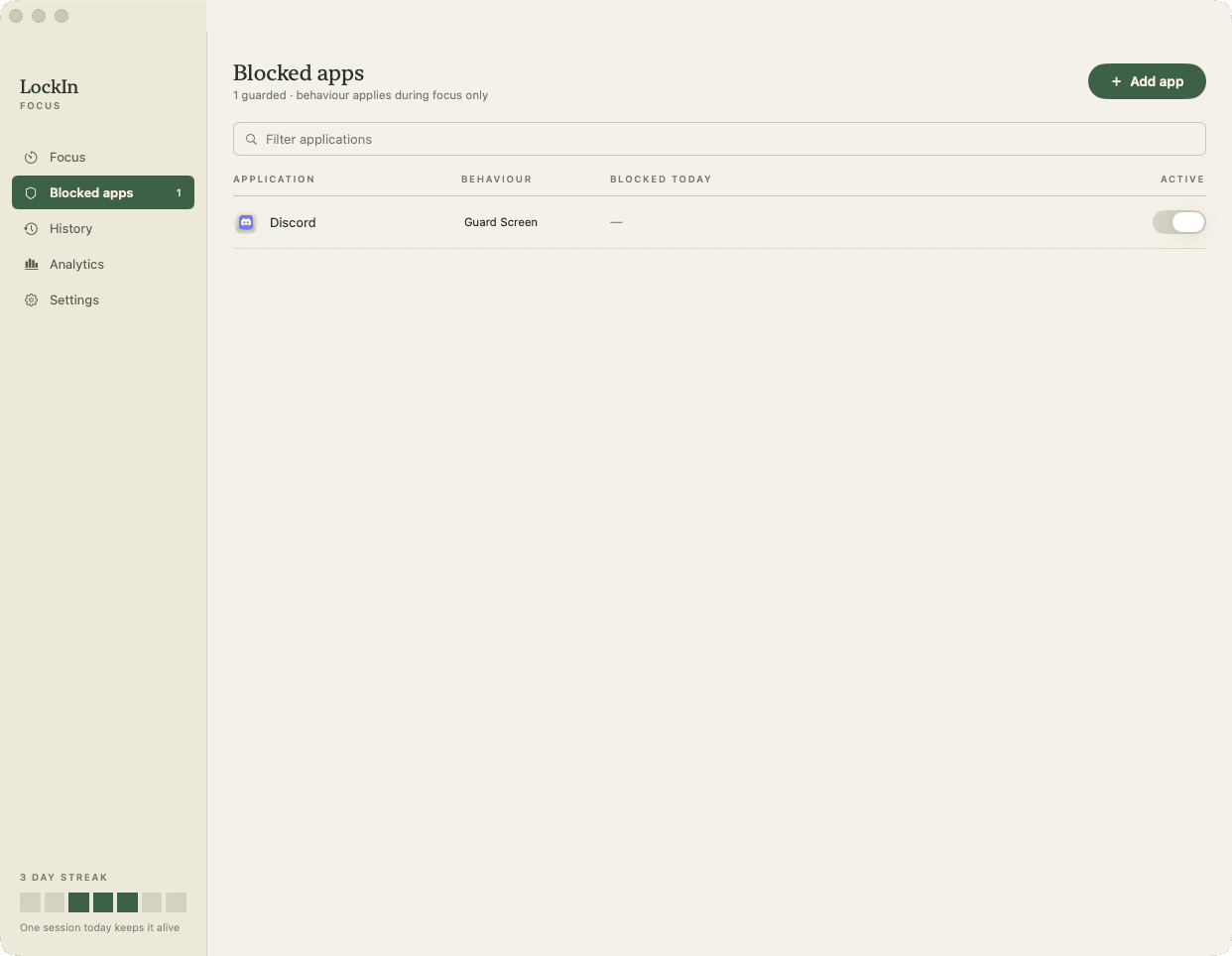
Discord can use Guard Screen while another app uses Hide Only or Quit App. Each row can follow the default or override it.
LockIn
Camera on. Friends in the room. You just need forty quiet minutes. LockIn keeps Discord running, then stops the reflex to open the window for “just one second.”
Launch email and occasional build notes. No weekly funnel.
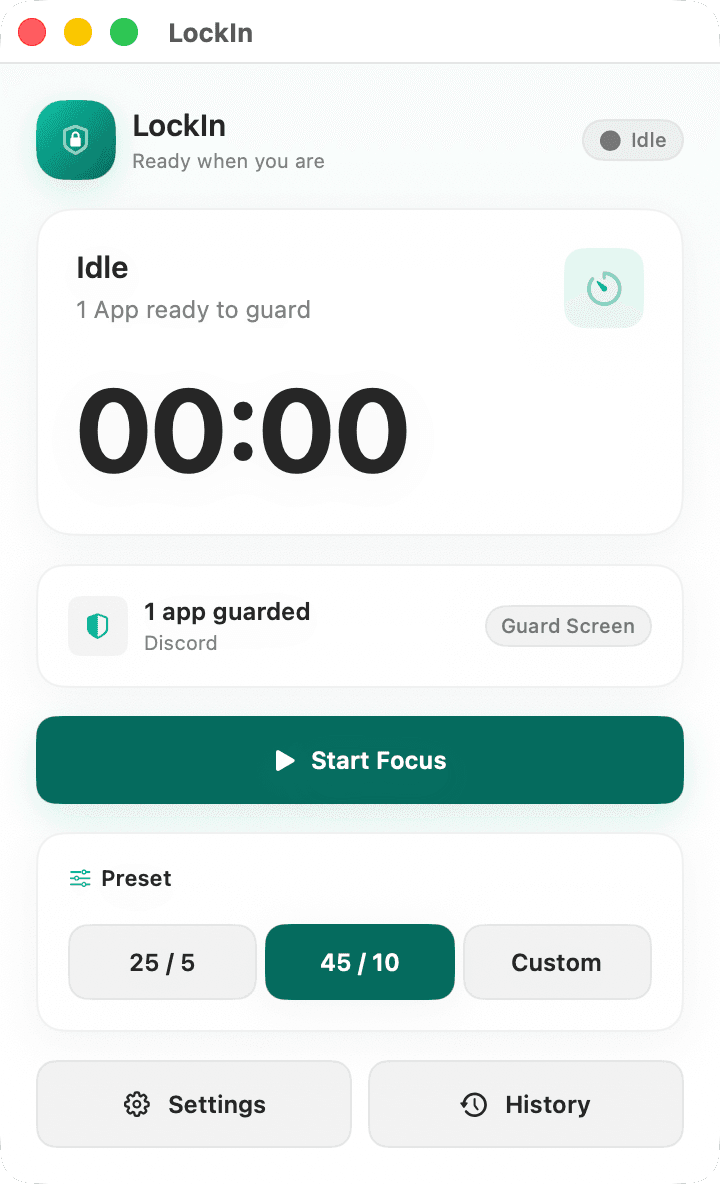
I started building LockIn for nights when my friends and I study together on Discord. I wanted to stay in the room without turning one quick reply into forty minutes of yapping.
Most blockers remove Discord. LockIn removes the decision to resist it. The call can stay alive; reaching for the window becomes a choice you have to see.
Guard Screen hides Discord without terminating it. Go back to work, take an explicit five-minute exception, or end the session. The exit exists; it just cannot happen unconsciously.
The timer is now one part of a full native workspace: focus, app rules, history, analytics, and settings live together.
The new build handles the moment you reach for an app, the break that follows, and the pattern you build over time, all without an account.
Discord can use Guard Screen while another app uses Hide Only or Quit App. Each row can follow the default or override it.
“Blocked today” counts how many times you reached for each app. The counter resets when the day changes.
If a break ends and you wander off, LockIn waits, takes the screen, counts down, and starts the next block.
A floating countdown stays above your windows. Controls appear on hover; the resting state only shows what matters.
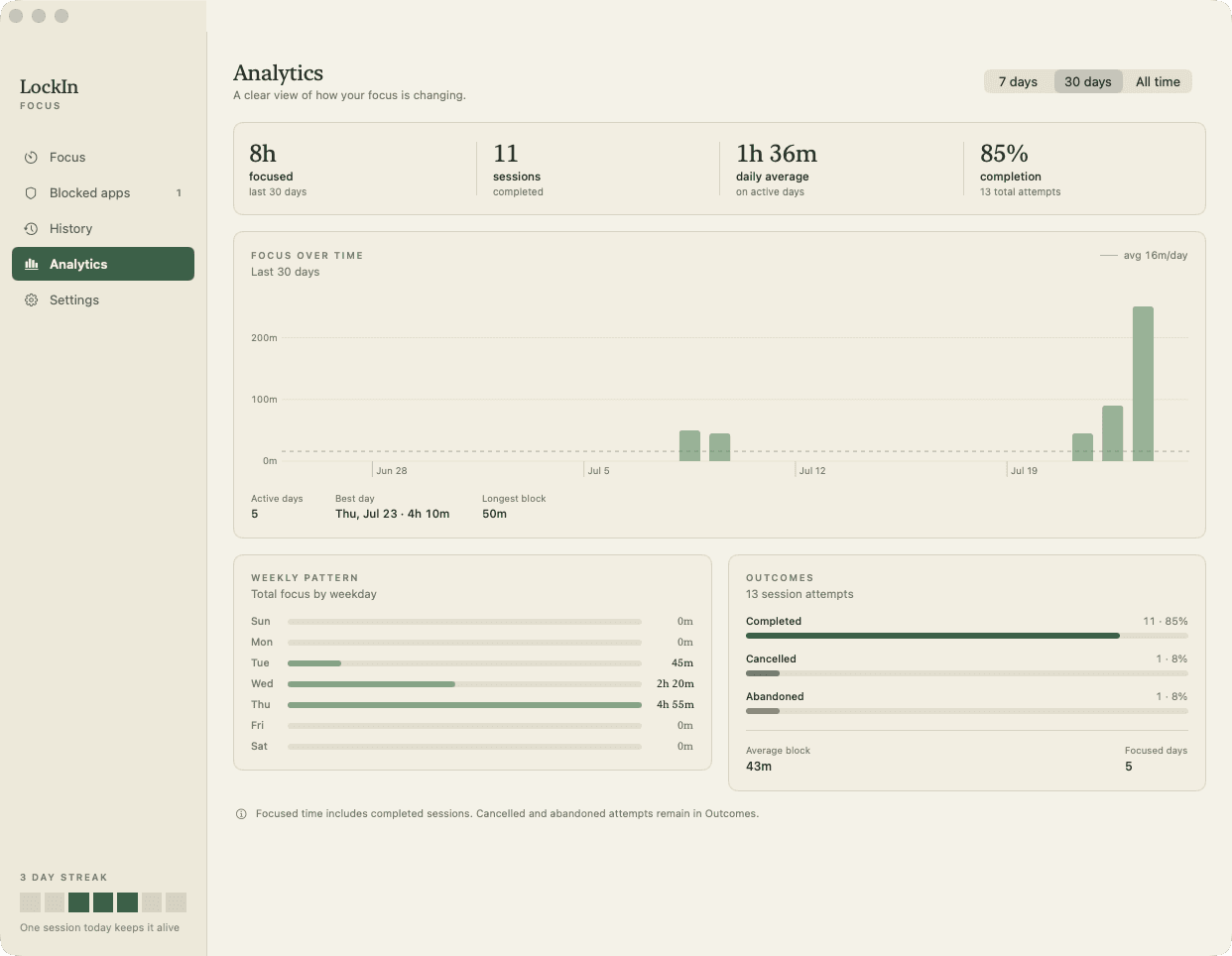
Compare 7 days, 30 days, or all time: focused time, active days, best day, longest blocks, and outcomes.
Completed, cancelled, and abandoned sessions stay visible. Export the ledger as CSV or JSON.
The new interface is not a mockup layer. It is wired to the real timer, history, and app rules.
Switch presets in the Focus view or set up to 180 focus minutes and 60 break minutes.
All three behaviors can be global or specific to one app. Guard Screen remains the default.
The sidebar shows your streak; the Focus view summarizes minutes and sessions across the week.
The local session ledger exports in open formats from inside the app.
Choose Guard Screen, Hide Only, or Quit App per app. Finder, Dock, System Settings, Terminal, WindowServer, and LockIn are protected.
Use 25/5, 50/10, or your own duration. Glance at time from the window, floating HUD, or menu bar.
When you enter Discord during focus, LockIn hides it and shows Guard Screen. During the break, guarding stops.
Stay present in the call without turning it into forty minutes of conversation.
Share the room while protecting the block you said you would finish.
For calls, uploads, and background work that should not die when a window is hidden.
Your focus patterns do not need to become a remote profile.
No account, cloud sync, remote analytics, or network dependency in the current build.
Config, state, daily interception activity, and history live in ~/Library/Application Support/LockIn/.What it records, what it cannot stop, and where every escape hatch goes.
Nothing. The current build does not install a privileged helper or prevent ⌘Q. Quitting stops guarding immediately, records an active focus block as abandoned, and relaunch starts fresh. Guard Screen is a speed bump, not a cage.
It opens that app for exactly five minutes. You can use it again; the current build has no allowance cap or penalty. If the app is still frontmost when time expires, LockIn hides it and shows Guard Screen again.
Every interception increments that app’s “Blocked today” counter, which resets when the day changes. Five-minute exceptions do not have their own separate log or long-term ledger yet.
Across 7 days, 30 days, or all time: focused time, completed sessions, average per active day, completion rate, focus trend, weekday pattern, best day, longest block, and completed, cancelled, or abandoned outcomes.
Not in Guard Screen or Hide Only: both behaviors hide the app. Quit App is a separate, explicit third behavior that requests termination.
Guard Screen uses macOS hide, not terminate, so the process stays alive. The full Discord call, camera, microphone, and screen-sharing matrix still needs manual validation before release.
Only during the focus phase and only for active apps in your list. Guarding stops during breaks and when the session ends.
No. The current build stores and calculates everything on your Mac, has no network client, and works offline.
Join the early-access list. I’ll email when LockIn is ready for a real Discord study-call test.