Click to hide, double-click for options
One click on the eye clears the Desktop. A double-click or right-click opens the menu with every setting.
Bare puts an eye in your menu bar. Click it and the folders, files and screenshots on your Desktop disappear. Click again and every one of them is back where you left it.
Free and open source · Notarized by Apple · macOS 13 or later

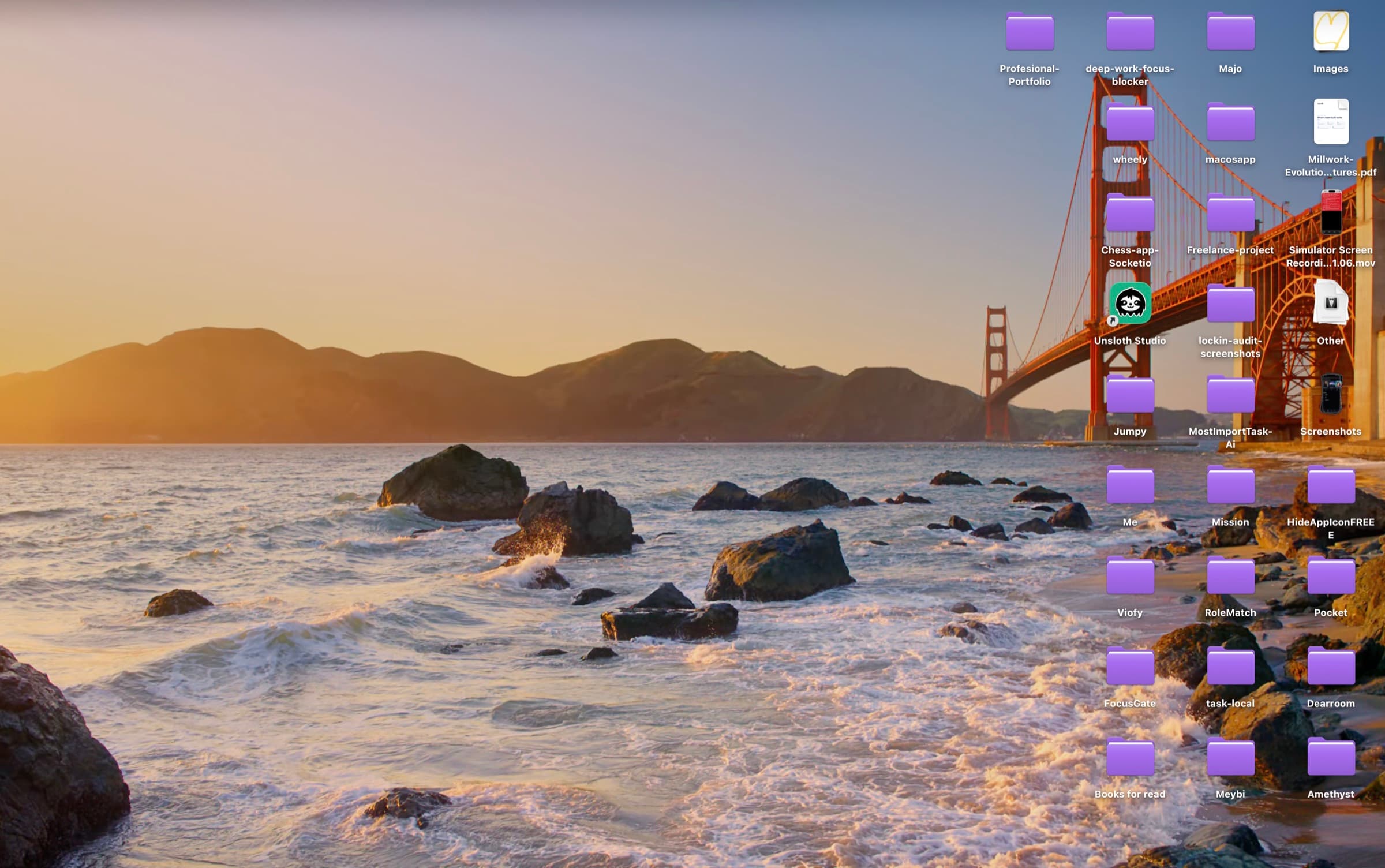
A real Desktop. Drag the divider, or click the eye.
Why it costs nothing
I tried three Mac apps that hide Desktop icons. All three wanted money before they would hide a single one.
So I built Bare and gave it away. Every feature is in the download you get today, and the code is on GitHub under the MIT license. Read it, change it, or build it yourself.
Orlando Ascanio, who made Bare
You choose what goes
Keep your project folders and lose last week’s 40 screenshots. Bare sorts the Desktop by type and shows how many of each you have.
One click on the eye clears the Desktop. A double-click or right-click opens the menu with every setting.
Record any key combination and hide or show the Desktop from whatever app you’re in.
Take a screenshot or save a download while the Desktop is hidden, and it hides as soon as it lands.
Bare sets the hidden flag macOS already uses. Files are never moved, renamed or deleted, and they still open from Finder and Spotlight.
Turn on launch at login and the Desktop is clean from the first minute of the day.
Yes. There is one version, it has every feature, and it costs nothing. The source code is MIT licensed on GitHub.
No. Bare sets the standard macOS hidden flag on Desktop items, the same one chflags hidden sets. Your files stay in the Desktop folder and open normally.
Yes. Bare is signed with a Developer ID and notarized by Apple, so it opens like any app from the web. It asks for one permission: access to your Desktop folder.
Click the eye again. Bare also shows everything when you quit it, unless you turn that option off.
No. Bare has no analytics and never connects to the internet. Its settings live on your Mac.
Any Mac running macOS 13 Ventura or later, Apple silicon or Intel.
Download Bare, click the eye, and that’s it.
Free and open source · Notarized by Apple · macOS 13 or later