
You can hide Desktop icons on a Mac without deleting your files. On macOS Sonoma 14 and later, start with the Desktop & Dock settings. Use Bare if you want a menu bar toggle, a keyboard shortcut, or to hide screenshots while leaving folders visible. Bare supports macOS 13 and later.
I make Bare. You may already have what you need in macOS, so I've included the built-in options. I checked the walkthrough on macOS 27.0.1, build 26A434, on Apple silicon, with Bare 1.0.0, on October 16, 2026. The screenshots are cropped native captures, using three sample items on the Desktop.
I tested only that macOS version. Instructions for other releases follow Apple's documentation and Bare's supported-version requirements.
Which method should you use?
| What you want | Start here | What to know |
|---|---|---|
| Fewer Desktop items without installing an app | Desktop & Dock settings | Desktop items can reappear when you click the wallpaper. |
| A frequent hide/show toggle | Bare's menu bar eye | Click again to restore the items Bare hid. |
| Hide screenshots but keep project folders | Bare's Choose Types menu | Select only the screenshot category. |
| Hide disk or server icons | Finder settings | These controls concern connected volumes, not ordinary files. |
| Change Finder's Desktop display through a command | Terminal | Finder relaunches; save ongoing Finder work first. |
For app choices, read the Bare, HiddenMe, and One Switch comparison.
Hide Desktop items using macOS settings
On macOS Sonoma 14 and later:
- Open System Settings → Desktop & Dock.
- Find Desktop & Stage Manager.
- Under Show Items, turn off On Desktop. Check the separate Stage Manager option if you use it.
- Click the wallpaper to check when macOS reveals the items again before using this during a presentation.
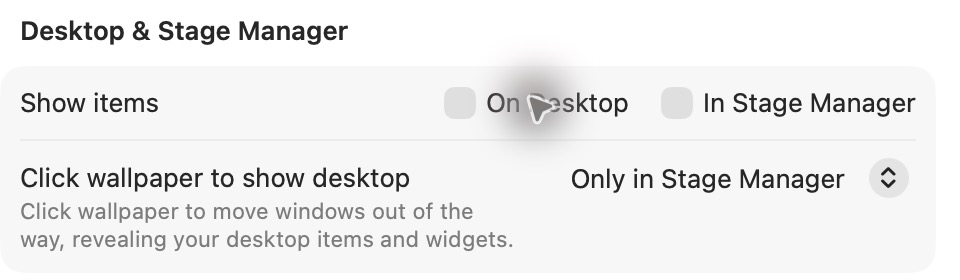
Apple documents this behavior in Desktop & Dock settings. Names and placement can vary by macOS version. To undo the change, enable On Desktop again.
To hide screenshots while keeping folders visible, use a tool with file-type selection.
Hide icons with Bare
Bare is a free, MIT-licensed menu bar app. It applies the standard macOS hidden file flag to selected Desktop items. It keeps track of the items it hides so that showing them again leaves previously hidden files alone.
- Download Bare, open the disk image, and drag Bare into Applications.
- Open Bare and allow access to your Desktop folder when macOS asks.
- Click the eye in the menu bar to hide icons. Click again to show them.
- Right-click the eye to open options. Choose Everything, or open Choose Types to select categories.
- Open Keyboard Shortcut… if you prefer a hotkey. The default is Control–Option–Command–H.
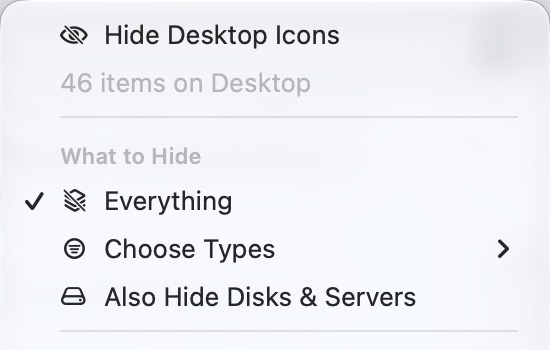
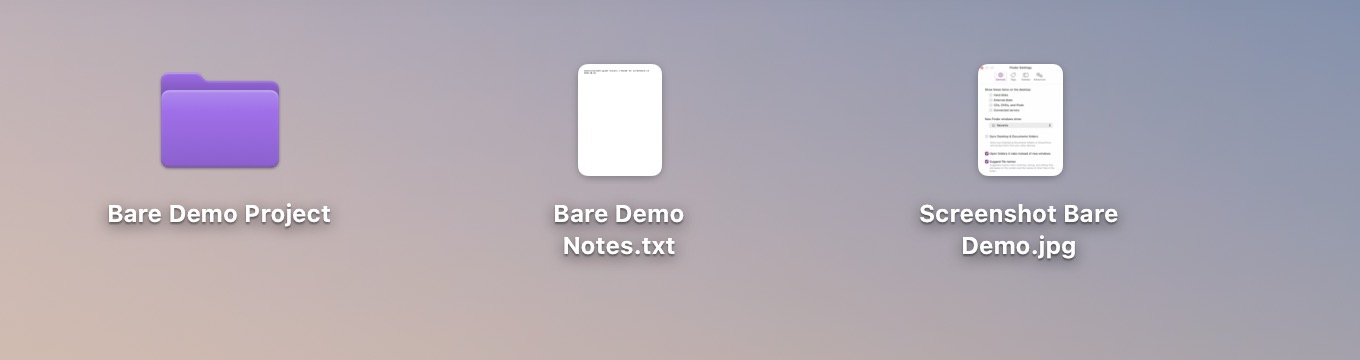
I started with a folder, a text document, and a screenshot file:
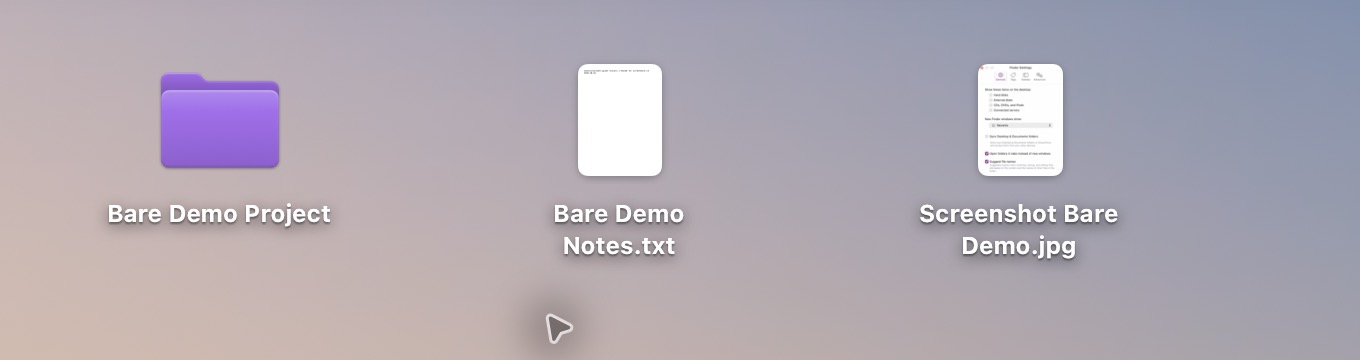
Choosing Everything hid all three. Show Desktop Icons brought them back, and a filesystem check confirmed that Desktop items had their original flags afterward.

The files stay in your Desktop folder. Hiding them does not free storage, organize their contents, or secure them against other people using your Mac. Finder's Command–Shift–period toggle can reveal hidden items, including on the Desktop.
To keep folders visible, follow how to hide only screenshots.
Hide only disks and servers with Finder
Open Finder → Settings → General and adjust Show these items on the desktop. These choices control volume icons such as drives and connected servers. They do not hide the documents, screenshots, or project folders you saved there. See Apple's Finder settings guide.
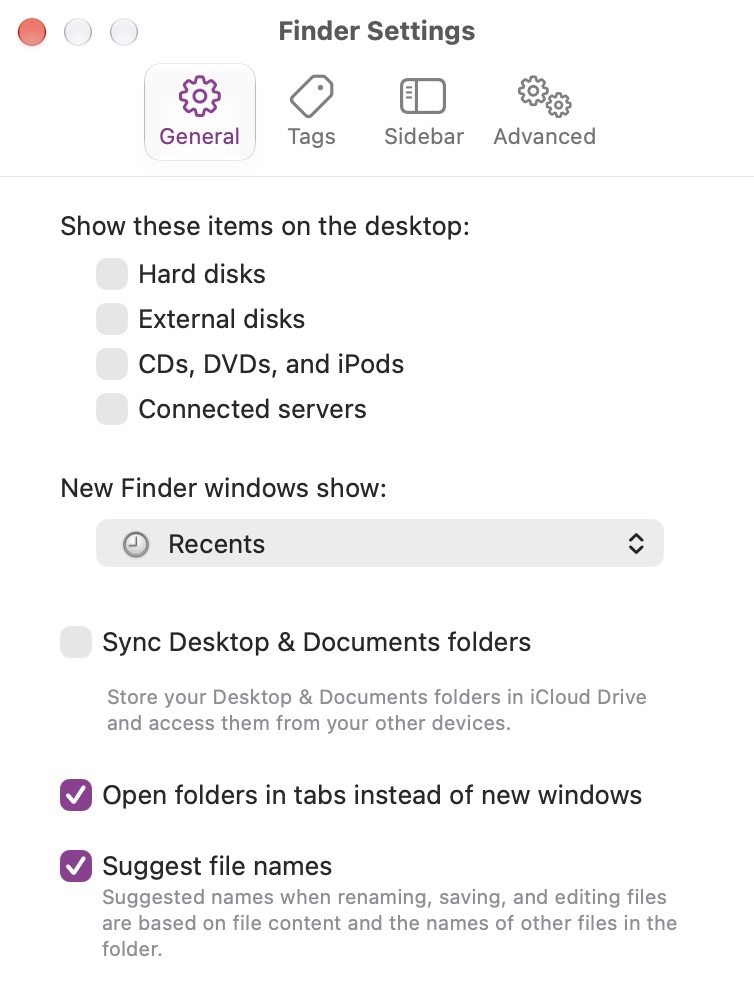
Bare also has Also Hide Disks & Servers. That option changes Finder settings and relaunches Finder; ordinary file hiding in Bare does not require that relaunch.
Hide all Desktop icons using Terminal
The Finder preference below is a commonly used command-line approach. It is not a documented Apple support interface, so behavior can change across macOS releases. Save ongoing Finder work before relaunching Finder.
To hide the Desktop display:
defaults write com.apple.finder CreateDesktop -bool false
killall Finder

To show it again:
defaults write com.apple.finder CreateDesktop -bool true
killall Finder
This changes Finder's overall Desktop display. It does not clear the per-file hidden flags Bare uses. If you combined methods, undo each method separately. The restore-icons guide walks through that distinction.
Before sharing or recording your screen
Hide the items, then inspect the preview in your meeting or recording app. Desktop hiding does not cover open documents, Finder windows, notifications, or other displays. Share a specific window when that better fits the task. Bare does not detect meetings or automatically start a presentation mode.
Questions
Does hiding icons delete the files?
No. The methods above change visibility. Bare leaves file contents and locations unchanged. Deleting a file or emptying the Trash is a separate action.
Why are my hidden icons still visible?
If they look dimmed, turn off Finder's show-hidden-files mode with Command–Shift–period. Also check whether macOS is temporarily revealing Desktop items after a wallpaper click.
Do I need an app just to hide everything?
Try the built-in Desktop & Dock controls first if your macOS version has them. Bare is useful when you want to switch frequently, assign a shortcut, or choose which types to hide.
Sources
- Bare 1.0.0 source and release: menu options, hidden flags, and restore behavior.
- Apple: Desktop & Dock settings.
- Apple: Finder settings.
A tiny vote of confidence
Was this note worth your time?