
To restore Desktop icons hidden by Bare, click its menu bar eye again or right-click it and choose Show Desktop Icons. Bare restores the items it hid. If the Desktop still looks empty, check the separate macOS Desktop display settings and any Terminal command you previously used.
I make Bare. I checked its 1.0.0 Show command on macOS 27.0.1, build 26A434, on Apple silicon, on October 16, 2026, using sample files. The screenshots show that restoration. These steps undo visibility changes; they cannot recover deleted files.
Start with the control you changed
| What changed before the icons disappeared? | First step |
|---|---|
| You clicked Bare's eye | Choose Show Desktop Icons in Bare. |
| You changed Desktop & Dock settings | Enable On Desktop under Show Items. |
| You ran a CreateDesktop command | Restore that Finder preference, then relaunch Finder. |
| Only drives or servers disappeared | Check Finder → Settings → General. |
| Icons are visible but dimmed | Check Finder's show-hidden-files mode. |
These methods can overlap. Showing items in Bare does not turn macOS's Desktop display on, and turning Desktop display on does not remove a file's hidden flag.
Show the items Bare hid
- Right-click Bare's eye in the menu bar.
- If the first command says Show Desktop Icons, select it.
- If it already says Hide Desktop Icons, Bare is no longer in hiding mode. Continue with the checks below.
- Before quitting or uninstalling Bare, show the icons first. Show Icons When Quitting is also available in the menu.
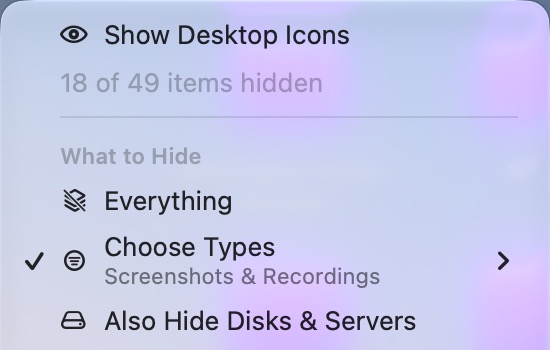

Bare tracks the names of items it hides and leaves previously hidden files alone. Show restores the tracked items; other hidden files stay hidden.
If you removed Bare while items were hidden, reopening the app and using Show Desktop Icons is the first option to try. Avoid deleting its saved settings before restoring the items.
Check the Desktop folder in Finder
Open Finder and choose Go → Desktop. Press Command–Shift–period to show hidden items temporarily. Items hidden by file flags can appear dimmed in this mode. Press the same keys again when you finish checking.
If a file is present there, check the visibility controls before treating it as lost. If it is absent, consider whether it was moved or deleted separately. Bare's hiding implementation does not move or delete file contents.
When Bare reports that it cannot access the Desktop, check System Settings → Privacy & Security → Files & Folders → Bare → Desktop Folder, then try the command again. That is the permission path given by Bare's access alert.
Turn Desktop display back on in macOS
On macOS Sonoma 14 and later, open System Settings → Desktop & Dock. Under Desktop & Stage Manager → Show Items, enable On Desktop. Check the Stage Manager control separately if that is where items are missing.
Apple explains these options in its Desktop & Dock guide. Wording can vary by version.
If you previously used the Terminal CreateDesktop method, save ongoing Finder work, then restore its display preference:
defaults write com.apple.finder CreateDesktop -bool true
killall Finder
This relaunches Finder. It reverses that overall display setting; it does not unhide individual files. The preference is a commonly used Finder command rather than a documented Apple support interface.
Restore disk and server icons separately
Open Finder → Settings → General and check the connected volumes you want displayed on the Desktop. These settings are separate from document visibility. Apple's Finder settings guide describes the controls.
If you enabled Also Hide Disks & Servers in Bare, use Bare's Show command to restore the Finder values it saved. Changing the disk setting relaunches Finder.
Unhide one known file if needed
Bare 1.0.0 records hidden items by filename. If you renamed a file while it was hidden, its new name may no longer match that record. A hidden file moved out of the Desktop is also outside Bare's scan. The engineering walkthrough explains these limits and the isolated checks that reproduced the rename case.
If Bare is unavailable and a specific file still has the hidden flag, you can remove that flag from that file. In Terminal, type chflags nohidden followed by a space, drag the known file from Finder into Terminal to insert its path, and press Return.
For a file named Meeting notes.pdf on your Desktop:
chflags nohidden "$HOME/Desktop/Meeting notes.pdf"
Replace the example path with your file's path. This changes that item's hidden flag. A wildcard could also reveal files you intentionally hid before using Bare, so avoid applying the command to every Desktop item.
The Bare source documents its tracked-file restoration and saved disk settings. Before hiding items again, choose a method from the Desktop hiding guide or follow the screenshots-only walkthrough.
A tiny vote of confidence
Was this note worth your time?