
To hide screenshots on your Mac Desktop while keeping folders visible, open Bare, right-click its menu bar eye, and choose Choose Types → Only Screenshots & Recordings. The preset turns hiding on and leaves recognized screen captures in place without deleting or moving them.
To save future screenshots elsewhere, use Shift–Command–5 → Options → Other Location.
I make Bare. I checked the Desktop walkthrough with Bare 1.0.0 on macOS 27.0.1, build 26A434, on Apple silicon, on October 16, 2026, using sample files. The images are native captures from that Mac. I left Screenshot's save destination unchanged.
Choose between hiding and changing the save location
| Your goal | Method | Existing Desktop screenshots |
|---|---|---|
| Keep captures on the Desktop but out of view | Bare's screenshot-only preset | Hidden if recognized as screen captures |
| Save future captures in a dedicated folder | Screenshot app's save location | Stay where they are |
| Paste one capture into a chat without saving a file | Add Control to the capture shortcut | Unchanged |
Hiding changes what you see. A new save location changes where future files go. Neither removes old captures or reduces the storage they use.
Hide existing screenshots with Bare
- Install Bare and grant Desktop folder access.
- Right-click the eye in the menu bar.
- Open Choose Types → Only Screenshots & Recordings.
- Choose Hide Desktop Icons if hiding is not already active.
- Check that the screenshots disappear while your project folders remain visible.

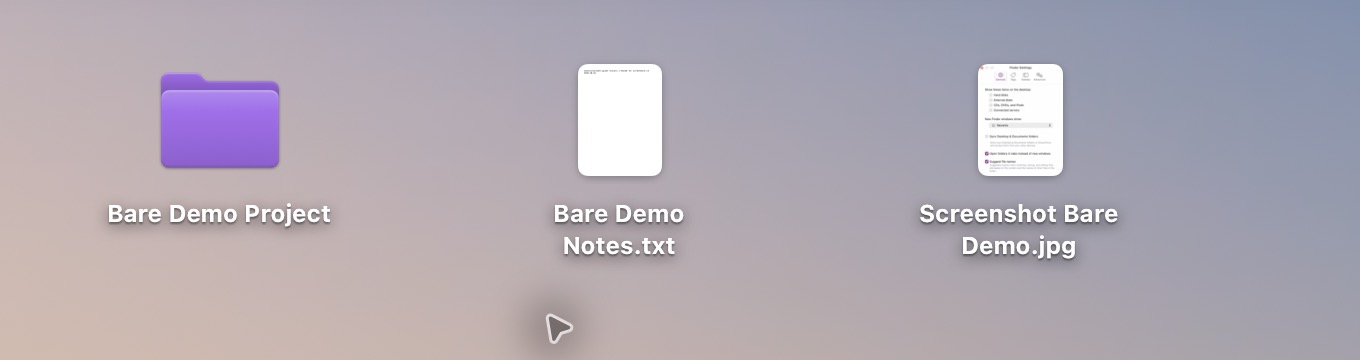
I started with three visible items:
After choosing Only Screenshots & Recordings, the screenshot acquired the hidden flag. The folder and document stayed visible:
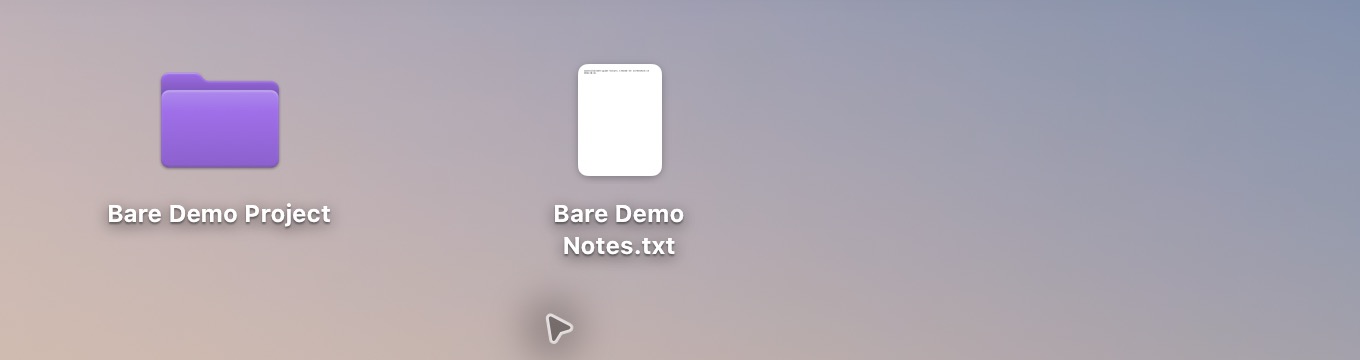
The preset includes recordings as well as screenshots. If you want a wider media cleanup, the same submenu offers Only Photos, Screenshots & Videos.
Enable Auto-Hide New Items to apply your selected categories to new items arriving on the Desktop while hiding is active. Bare waits 0.4 seconds after a directory event before rescanning, and repeated events can postpone the scan, so a new capture may briefly appear. It does not watch every folder on your Mac. If you send screenshots to a different folder, Bare does not manage that destination.
To restore the items Bare hid, click the eye again or choose Show Desktop Icons. You can keep the same type selection for next time.
What counts as a screenshot in Bare?
Bare checks for macOS's screen-capture metadata, then falls back to filename prefixes including Screenshot, Screen Shot, Screen Recording, Simulator Screenshot, Simulator Screen Recording, and CleanShot.
A renamed image without screen-capture metadata may be classified as a photo. A file whose name begins with one of those prefixes may be treated as a capture. The rules are in Bare's classifier.
If a capture stays visible, check its category in Choose Types. Also check whether Finder is showing hidden files: Command–Shift–period toggles that mode and can make hidden Desktop items appear dimmed.
Save future screenshots in another folder
- Create a destination, such as a Screenshots folder inside Pictures.
- Press Shift–Command–5 to open Screenshot.
- Click Options.
- Under Save to, choose Other Location and select your folder.
- Take a test capture and confirm the file appears there.
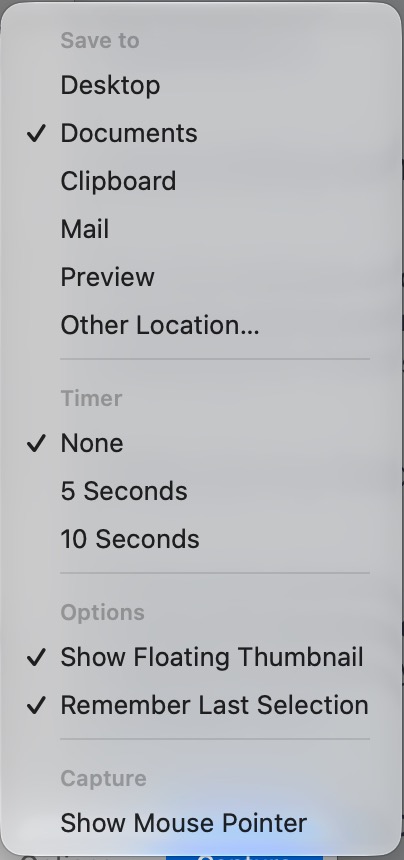
Apple documents the save-location controls in its Screenshot guide. This affects future captures using that setting. It does not move existing files; move those yourself if you want to organize them.
To save to the Desktop again, open the same menu and choose Desktop. If you use a third-party capture app, check that app's destination separately.
Copy a screenshot without creating Desktop clutter
For a capture you only need to paste, add Control to a screenshot shortcut. For example, Control–Shift–Command–4 lets you select a region and copy it to the Clipboard. Paste it into the destination app with Command–V.
This avoids a saved Desktop file for that capture. Apple's screenshot shortcut instructions describe the Clipboard option.
Questions
Can I hide screenshots without hiding folders?
Yes. Bare's screenshot-only preset leaves the folder category unselected. It targets recognized screenshots and recordings, so check classification if an image behaves differently than expected.
Will hiding screenshots make a screen share private?
Hiding reduces visible Desktop clutter. It does not hide a capture opened in Preview, a Finder window, notifications, or the contents of another display. Check the sharing preview before starting.
Can I use Bare and a separate screenshot folder together?
Yes. Bare can hide the captures already on the Desktop while Screenshot saves new captures somewhere else. The files in the separate folder are outside Bare's Desktop workflow.
For the full set of methods, read how to hide Desktop icons on Mac. If you need to undo a setting, use the restore-icons checklist.
A tiny vote of confidence
Was this note worth your time?